Small adjustments to screen height, reach, and lighting can make long work sessions more comfortable.
A computer can be powerful and still feel unpleasant to use for hours. A screen that is too low, a mouse that requires a long reach, or bright light reflecting from the display can turn ordinary work into unnecessary strain. Setting up a comfortable workspace is less about buying expensive accessories and more about arranging the parts you already use. Begin with the screen. Place it directly in front of you rather than far to one side if it is your main display. Adjust the height so your head can remain in a comfortable, neutral position. An excessively high screen can make you tilt your head back, while a low laptop screen may encourage you to bend forward. The appropriate viewing distance depends on screen size and your eyesight, but you should be able to read comfortably without leaning in. The keyboard and mouse should be easy to reach. Keep them close enough that your shoulders can relax and your elbows need not stretch forward throughout the day. Avoid holding your wrists at an awkward angle for long periods. If your desk edge presses into your arms, reposition your equipment or adjust the work surface. Comfort comes from the relationship between chair, desk, input devices, and screen rather than from any one product. A laptop creates a particular trade-off: its keyboard is attached to its screen. If you raise the laptop to a comfortable viewing height, the keyboard may become too high or far away. For regular desk work, a stand with an external keyboard and mouse can separate those positions. An external monitor is another option. You do not need every accessory, but you should recognize why using a laptop flat on a desk for long sessions may feel awkward. Adjust the chair and desk together. Your feet should have stable support, and you should have enough room to change position. If a chair is too high for your feet to rest comfortably, a stable footrest may help. If the desk is too high, raising only the chair may create a new problem elsewhere. Make changes one at a time and notice how your shoulders, back, and hands feel. Lighting affects both visibility and posture. Glare from a window or overhead light may lead you to lean or twist to see the screen. Reposition the monitor, adjust blinds, or change the direction of light when possible. Set screen brightness for the surroundings rather than keeping it at one extreme all day. Increasing text size can be more helpful than moving your face closer to the display. Even a well-arranged workspace cannot make staying in one posture all day ideal. Take opportunities to stand, walk, or change tasks. Brief pauses can also give your eyes a break from continuous screen viewing. A routine of small changes is usually easier to maintain than waiting until you are already uncomfortable. Notice early signals. Repeated neck, shoulder, wrist, or eye discomfort may indicate that the arrangement needs adjustment. However, persistent pain, numbness, weakness, or vision problems should not be diagnosed from a desk setup alone. Seek appropriate professional advice if symptoms continue or worsen. Shared workspaces need extra flexibility. A chair and monitor that fit one person may not suit another. If several people use the same desk, make the adjustable features easy to change. For someone working between home and office, a small set of repeatable adjustments can help recreate a comfortable position in both places. The best workstation is one you can use and adapt. Start with screen position, reach, support, and lighting. Change one element, observe the effect, and continue until everyday work feels less demanding on your body. A comfortable setup supports your work without asking you to hold an unnatural position to use your computer.
A computer can be powerful and still feel unpleasant to use for hours. A screen that is too low, a mouse that requires a long reach, or bright light reflecting from the display can turn ordinary work into unnecessary strain. Setting up a comfortable workspace is less about buying expensive accessories and more about arranging the parts you already use.
Begin with the screen. Place it directly in front of you rather than far to one side if it is your main display. Adjust the height so your head can remain in a comfortable, neutral position. An excessively high screen can make you tilt your head back, while a low laptop screen may encourage you to bend forward. The appropriate viewing distance depends on screen size and your eyesight, but you should be able to read comfortably without leaning in.
The keyboard and mouse should be easy to reach. Keep them close enough that your shoulders can relax and your elbows need not stretch forward throughout the day. Avoid holding your wrists at an awkward angle for long periods. If your desk edge presses into your arms, reposition your equipment or adjust the work surface. Comfort comes from the relationship between chair, desk, input devices, and screen rather than from any one product.
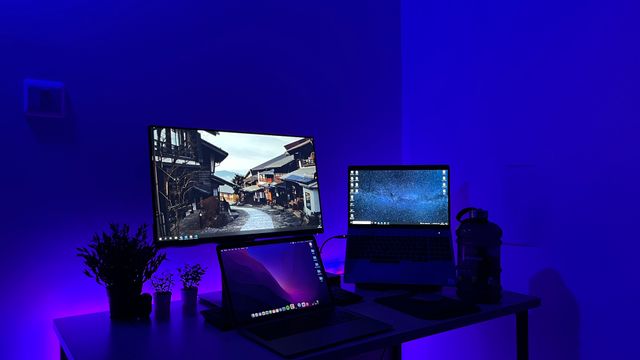
A laptop creates a particular trade-off: its keyboard is attached to its screen. If you raise the laptop to a comfortable viewing height, the keyboard may become too high or far away. For regular desk work, a stand with an external keyboard and mouse can separate those positions. An external monitor is another option. You do not need every accessory, but you should recognize why using a laptop flat on a desk for long sessions may feel awkward.
Adjust the chair and desk together. Your feet should have stable support, and you should have enough room to change position. If a chair is too high for your feet to rest comfortably, a stable footrest may help. If the desk is too high, raising only the chair may create a new problem elsewhere. Make changes one at a time and notice how your shoulders, back, and hands feel.
Lighting affects both visibility and posture. Glare from a window or overhead light may lead you to lean or twist to see the screen. Reposition the monitor, adjust blinds, or change the direction of light when possible. Set screen brightness for the surroundings rather than keeping it at one extreme all day. Increasing text size can be more helpful than moving your face closer to the display.
Even a well-arranged workspace cannot make staying in one posture all day ideal. Take opportunities to stand, walk, or change tasks. Brief pauses can also give your eyes a break from continuous screen viewing. A routine of small changes is usually easier to maintain than waiting until you are already uncomfortable.
Notice early signals. Repeated neck, shoulder, wrist, or eye discomfort may indicate that the arrangement needs adjustment. However, persistent pain, numbness, weakness, or vision problems should not be diagnosed from a desk setup alone. Seek appropriate professional advice if symptoms continue or worsen.
Shared workspaces need extra flexibility. A chair and monitor that fit one person may not suit another. If several people use the same desk, make the adjustable features easy to change. For someone working between home and office, a small set of repeatable adjustments can help recreate a comfortable position in both places.
The best workstation is one you can use and adapt. Start with screen position, reach, support, and lighting. Change one element, observe the effect, and continue until everyday work feels less demanding on your body. A comfortable setup supports your work without asking you to hold an unnatural position to use your computer.

Popular Tools
Recent Posts